
For Agents
2 min read
How to delete CMAs in your Relab CMA Dashboard
The Delete CMA feature in Relab helps you maintain a clean, organised workspace by removing appraisals that are no longer needed. When your CMA dashboard becomes crowded with outdated appraisals, this feature makes it easier to find and focus on your active CMAs.
Before you start, open your Relab CMA Dashboard where all your saved CMAs are stored. Make sure you've identified the specific CMA you want to remove - you can't undo this action once completed.
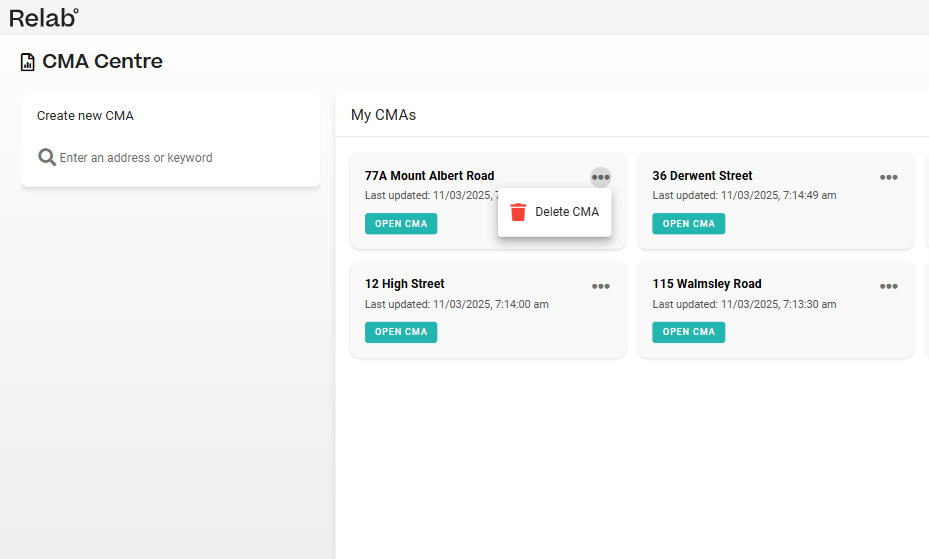
Step 1: Click on the three dots on the CMA you wish to delete
![Using Relab's CMA Dashboard to delete appraisals]()
Step 2: Click the delete icon.
![How to delete property appraisals using Relab]()
How to delete your CMA
Before you start, open your Relab CMA Dashboard where all your saved CMAs are stored. Make sure you've identified the specific CMA you want to remove - you can't undo this action once completed.
Step 1: Click on the three dots on the CMA you wish to delete
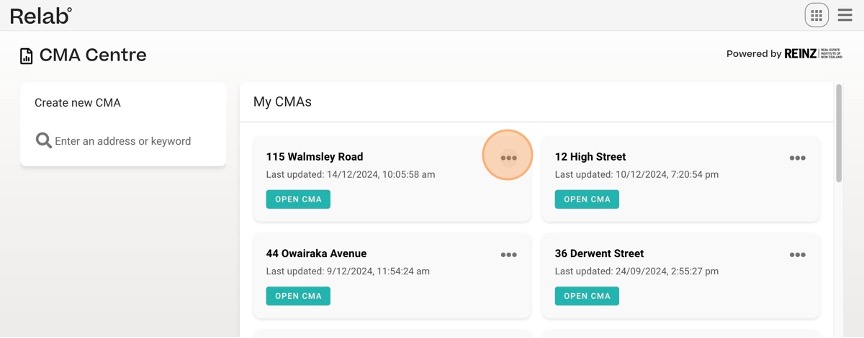
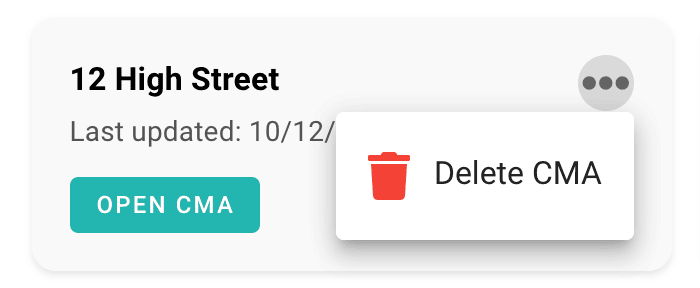
Step 2: Click the delete icon.
Common Uses
Managing your CMA workspace effectively helps you stay organised and professional. Most agents remove CMAs after presenting to their clients or when the property has sold. This helps keep your dashboard focused on active listings and current client needs.
Tips for Success
For high-volume agents, setting aside a few minutes each week for CMA cleanup helps prevent dashboard clutter and keeps your workspace efficient. This regular maintenance approach is more manageable than waiting until you have dozens of outdated CMAs to sort through.