

For Agents
5 min read
Understanding What’s Editable in Your Relab CMA
As a real estate agent, your Comparative Market Analysis (CMA) is more than just a report – it's your professional calling card. But have you ever wondered which pages you can actually customise to make your appraisal stand out?
A Comparative Market Analysis is your go-to tool for presenting property valuation insights to potential clients. It's not just about numbers – it's about telling a compelling story about a property's market position. Page editability allows you to tailor this story, ensuring your presentation reflects your professional brand and meets your clients' specific needs.
Not all pages in your CMA are created equal. Here's a quick guide to help you navigate:
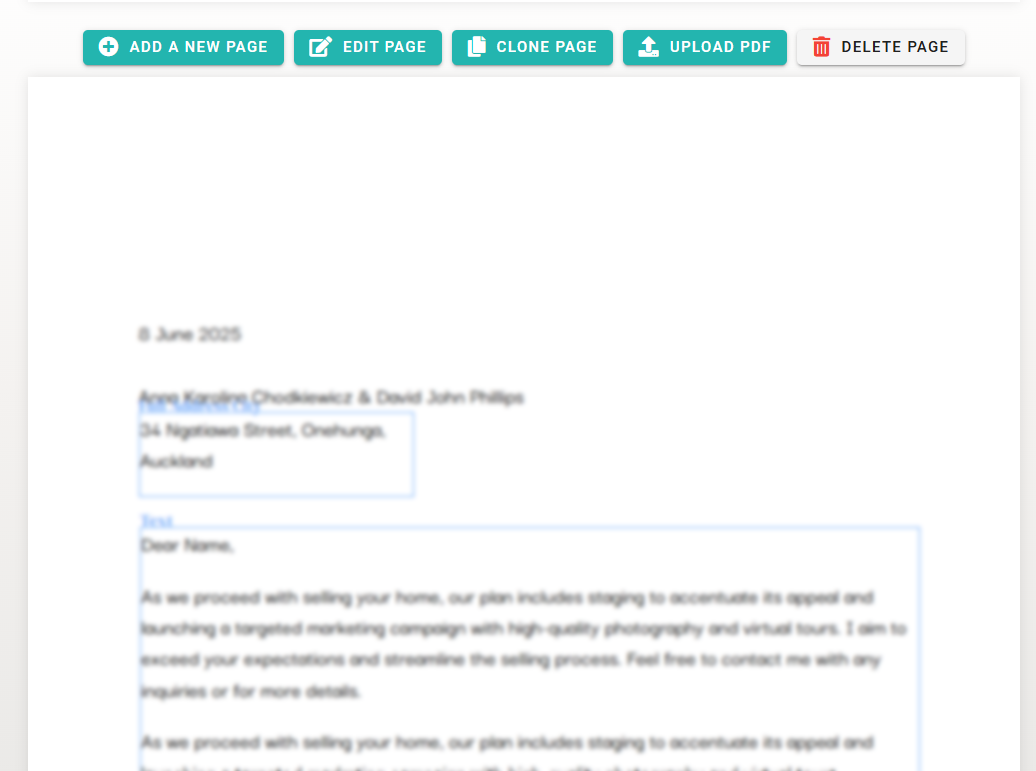
Look for the pen/edit icon (✏️) at the top of the page. These pages indicate that its editable:
![An image of Relab design studio, showing options of editable page]()
Some data pages have limited editing functionality, including:
![An image of Relab design studio highlighting a non-editable page]()
These pages contain critical data that requires consistent formatting and accuracy. They cannot be edited unless you're using a custom enterprise template built by our development team
Managing Your CMA with the Left Panel
The left panel in Relab's CMA design studio gives you control over every aspect of your report. Here's what you can do in each section:
My Details Update your professional information and profile image:
Agent name and contact details (email, phone, website)
Profile photo options: upload new, or remove
Owner Details: Edit client information
Templates: Choose from pre-designed layouts or create and save your own custom templates to match your brand.
Pages:
Comparable Sales, Comparable Listings and Schools:
Advanced Editing Options
For more detailed customisation, explore how to use Relab's advanced editing studio. You can learn how to create multiple image templates for your comparable sales and more.
Read our guide on how to replace images using Relab's advanced editing tool to make your reports even more tailored and professional.
New to Relab? Start your 14-day free trial and see how Relab can transform your property presentations.
Want to see it in action? Book a 20-minute demo to discover how Relab can streamline your agency's workflow.
Why Does Page Editability Matter?
A Comparative Market Analysis is your go-to tool for presenting property valuation insights to potential clients. It's not just about numbers – it's about telling a compelling story about a property's market position. Page editability allows you to tailor this story, ensuring your presentation reflects your professional brand and meets your clients' specific needs.
Editable vs. Non-Editable: What's the Difference?
Not all pages in your CMA are created equal. Here's a quick guide to help you navigate:
Editable Pages
Look for the pen/edit icon (✏️) at the top of the page. These pages indicate that its editable:
- You can directly customise the content
- Add new pages
- Clone existing pages
- Modify all design elements
Non-Editable Pages
Some data pages have limited editing functionality, including:
- Property Details
- Comparable Sales and Listings
- Property Map
- Residential Insights
- Title Page
- School Zones
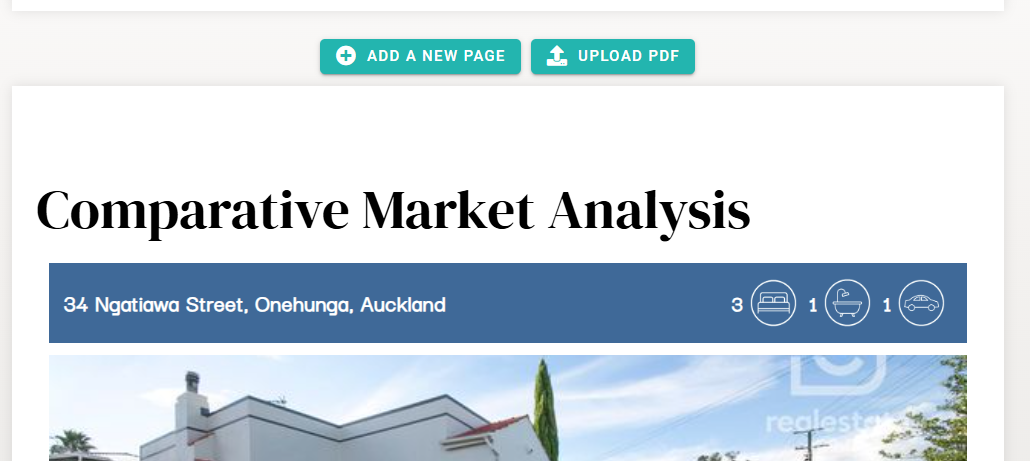
These pages contain critical data that requires consistent formatting and accuracy. They cannot be edited unless you're using a custom enterprise template built by our development team
Managing Your CMA with the Left Panel
The left panel in Relab's CMA design studio gives you control over every aspect of your report. Here's what you can do in each section:
My Details Update your professional information and profile image:
Agent name and contact details (email, phone, website)
Profile photo options: upload new, or remove
Owner Details: Edit client information
Templates: Choose from pre-designed layouts or create and save your own custom templates to match your brand.
Pages:
- Reorder pages by dragging the ≡ icon next to each page name
- Show or hide pages based on what's relevant for each client using the blue checkbox
- Control the flow of your presentation from cover to end
Comparable Sales, Comparable Listings and Schools:
- Control the number results displayed per page
- Easily rearrange order by dragging the≡ icon next to each result
- Pro tip: To delete a school or comparable sale or listing, hover over the result in your report and select remove.
Advanced Editing Options
For more detailed customisation, explore how to use Relab's advanced editing studio. You can learn how to create multiple image templates for your comparable sales and more.
Read our guide on how to replace images using Relab's advanced editing tool to make your reports even more tailored and professional.
Ready to Enhance Your CMA Reports?
New to Relab? Start your 14-day free trial and see how Relab can transform your property presentations.
Want to see it in action? Book a 20-minute demo to discover how Relab can streamline your agency's workflow.